If you’ve never seen a Pixieset gallery before, or maybe you’ve received one and found it a little confusing to figure out, I’ve put together a guide to walk you through downloading your photos from Pixieset. Don’t worry, I’ve simplified it as much as I can while still showing you everything you need!
Pixieset is a fantastic web tool that a lot of photographers use to upload and deliver photos from your session. It lets us organize your photos into different sections if there are multiple parts to your session, and we can add PINs and watermarks to help keep your photos private and prevent others from accessing or downloading them.
But instead of just sending you a folder through something like Google Drive, there are a few extra steps to get to your photos. That’s where this tutorial comes in! I’ll walk you through the process step by step so you can easily access your Pixieset photo gallery and download the photos you want to keep.
If you want to keep something on hand, download the digital PDF version of the guide here!
Start here:
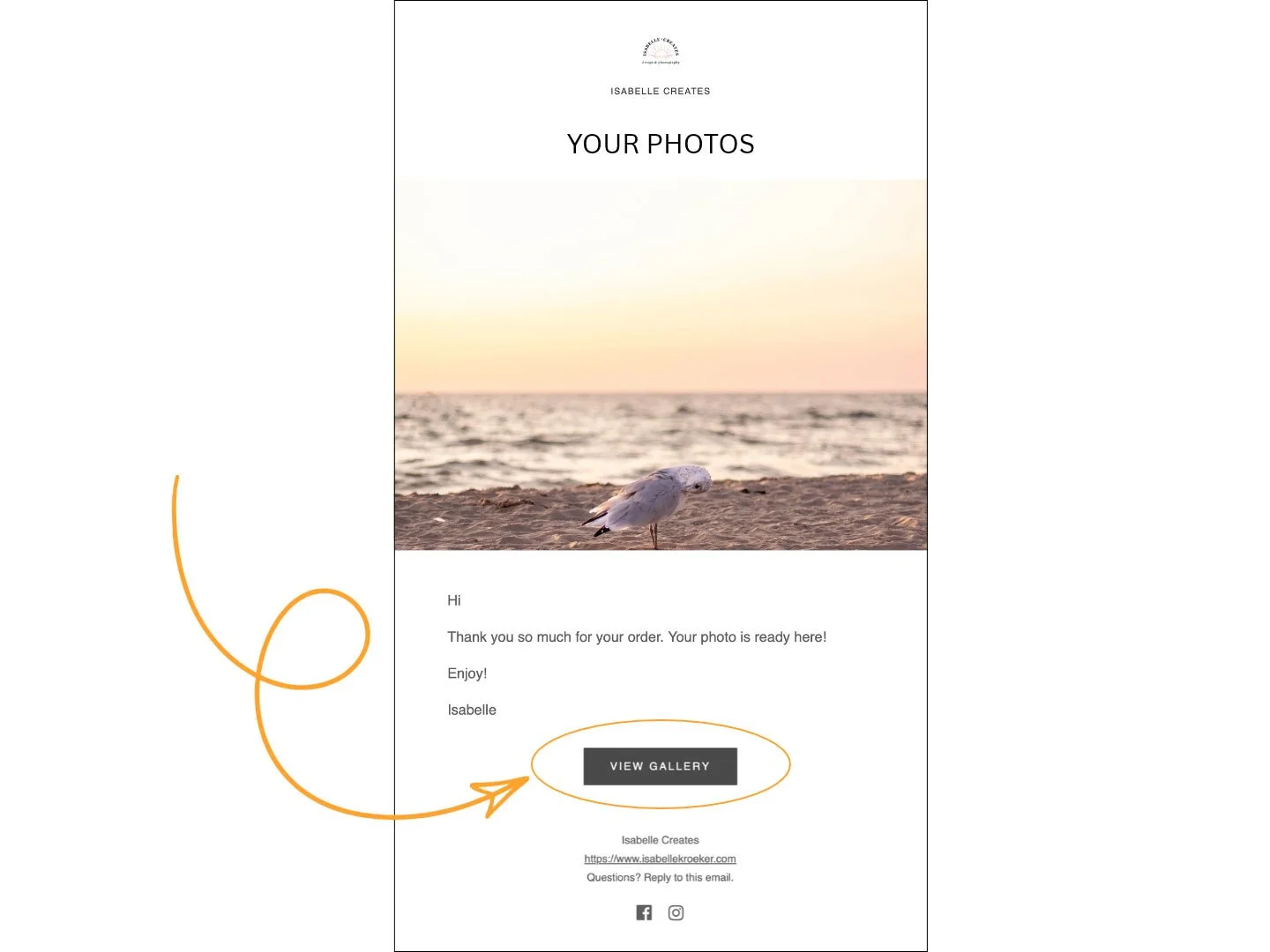
Step One: First, find the email that was sent from me, Isabelle Creates.
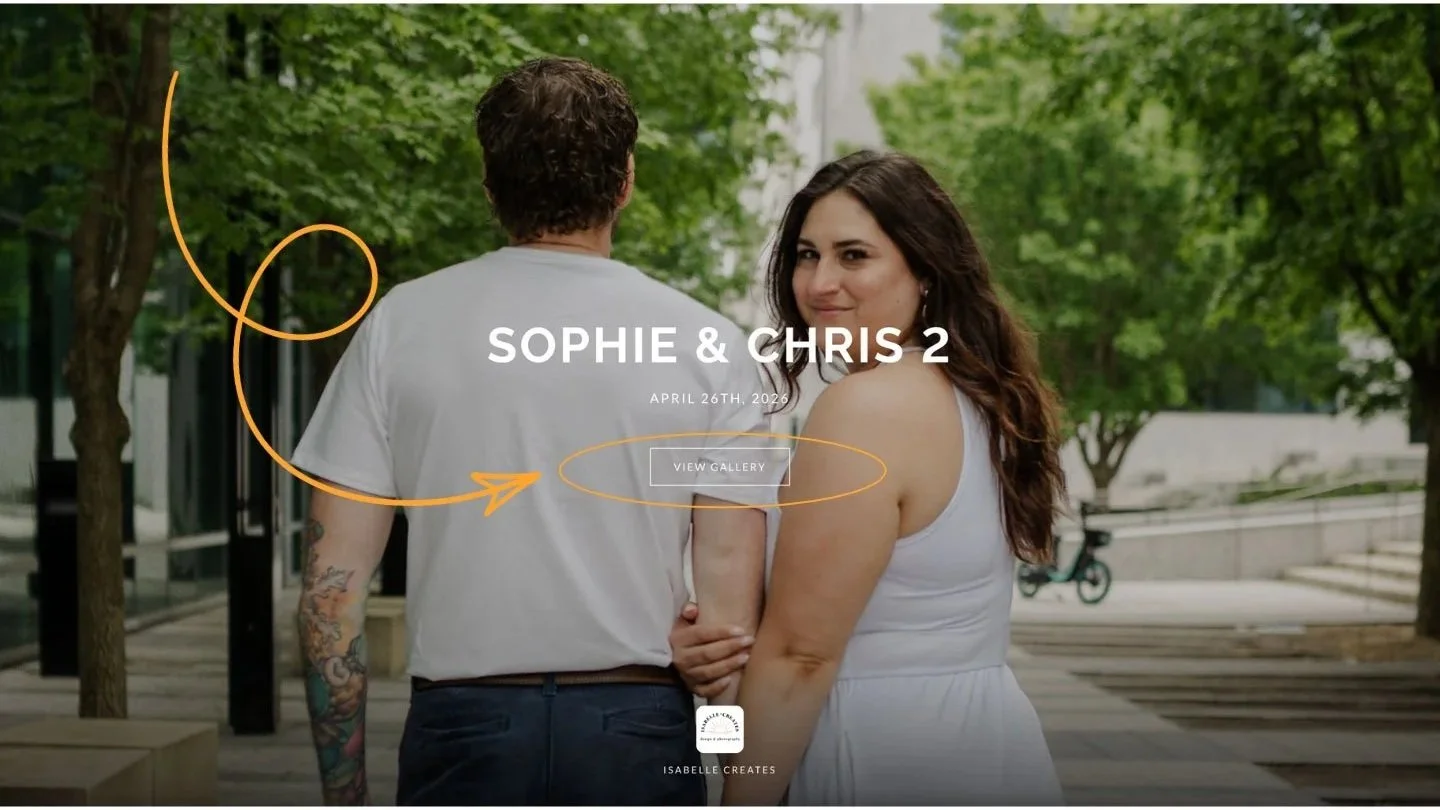
Scroll down to the button that says “View Gallery.”
Click on it.
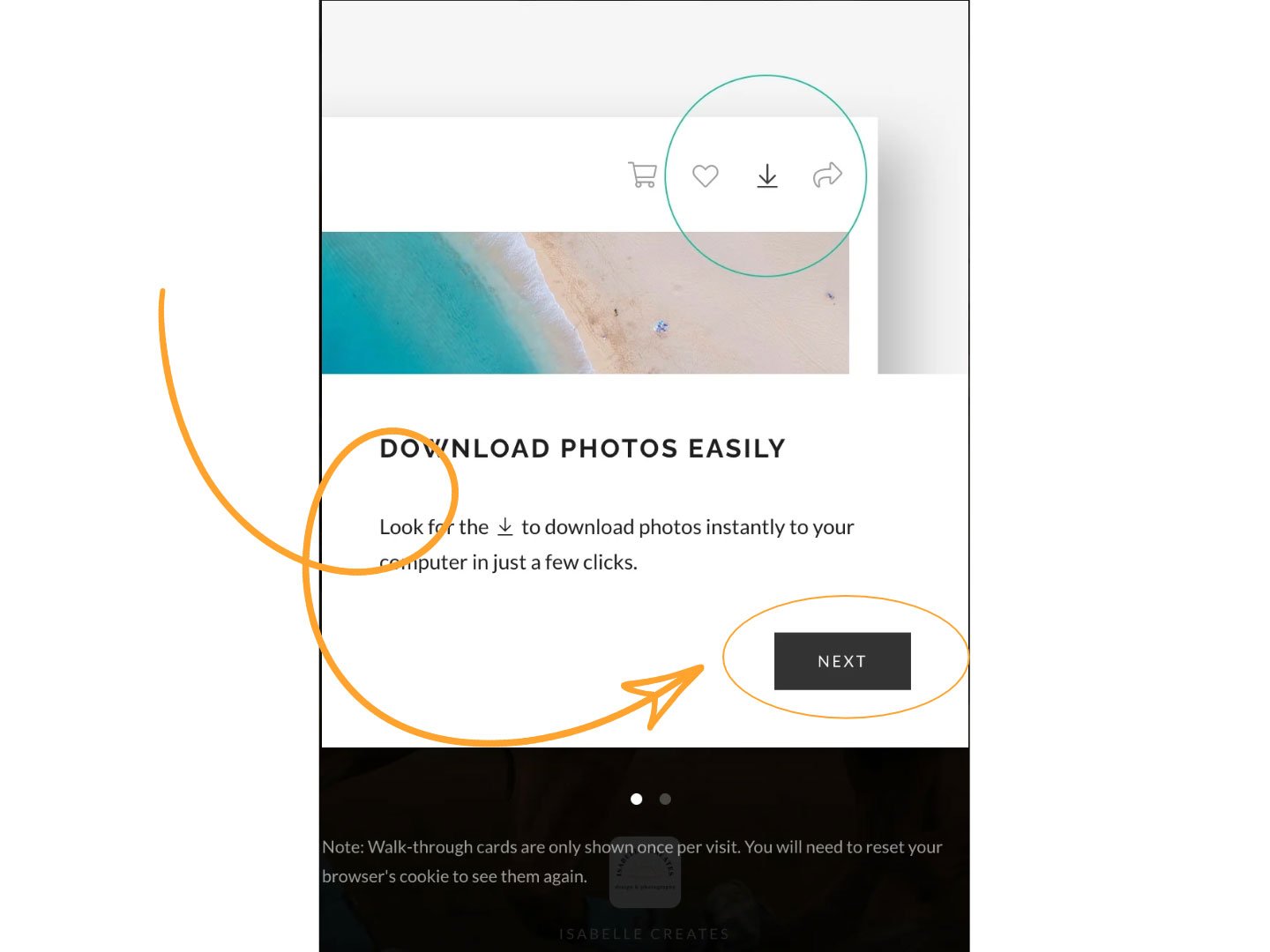
Your gallery will open in your usual web browser. Once there, click “Next”
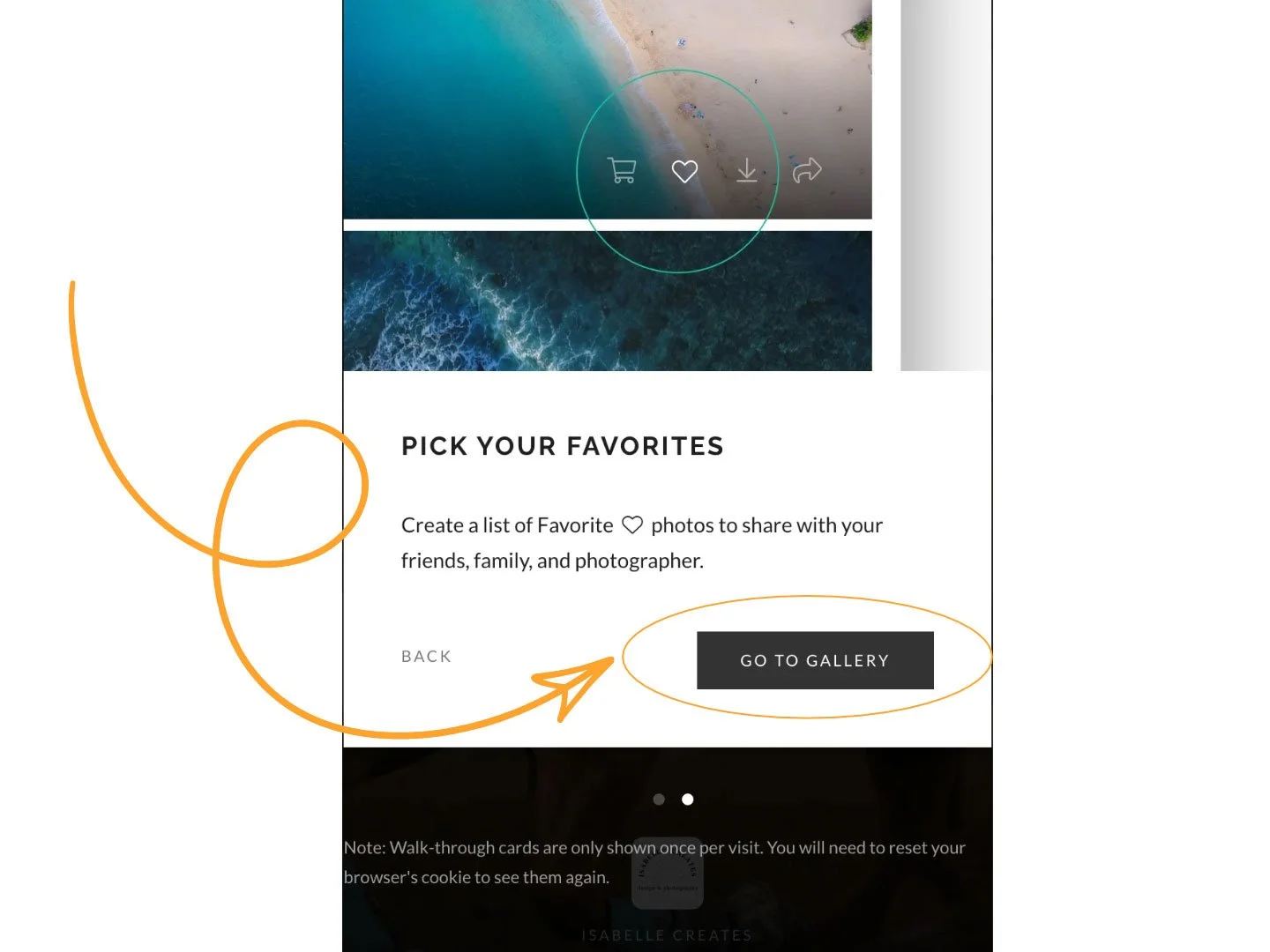
Click “next” again if needed, then click “Go to Gallery”
Once your gallery is loaded, click on “View Gallery”
To download the whole gallery, continue here. If you want to do single-image downloads, click here.
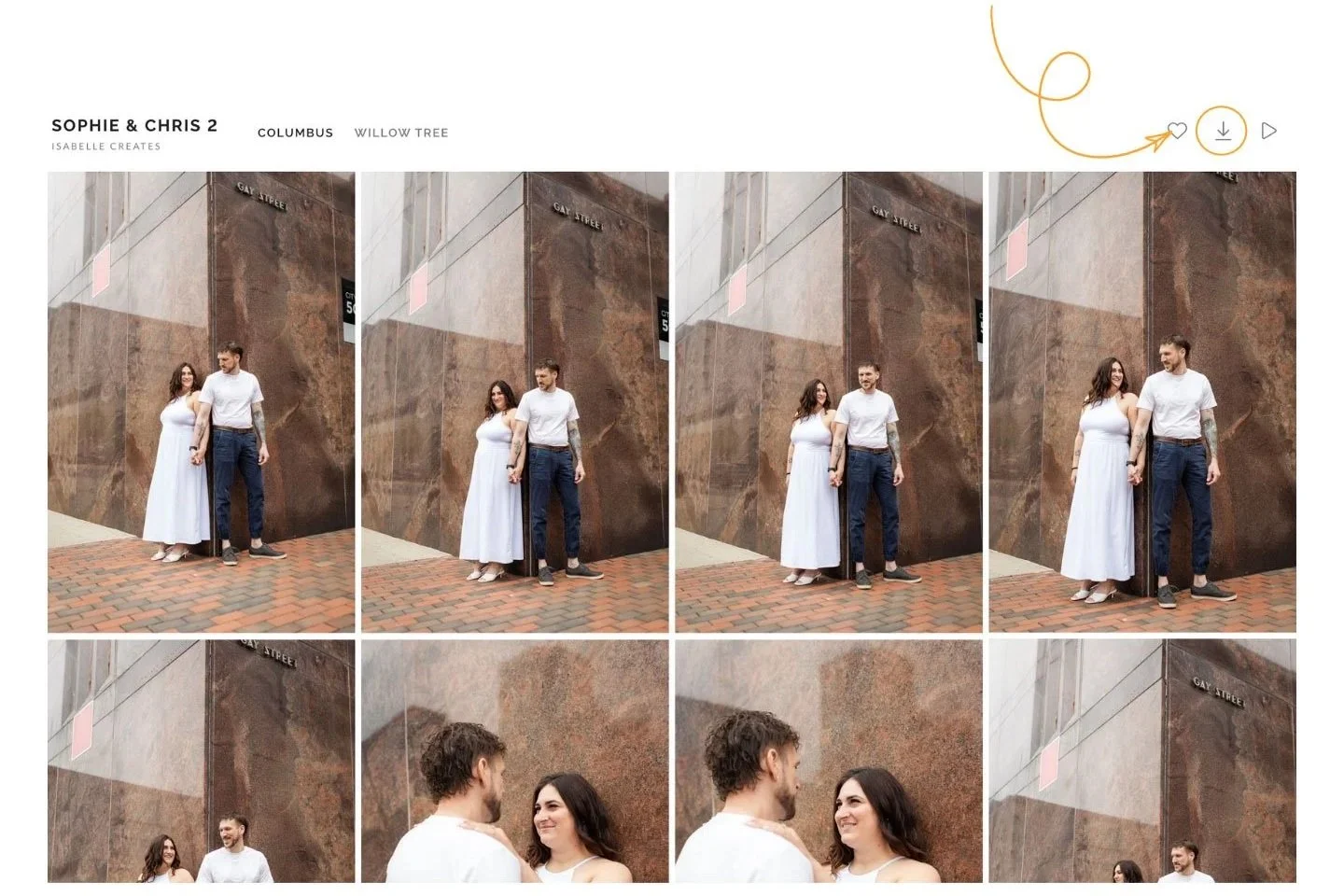
To download the whole gallery (recommended only on computers, not mobile), click on the down arrow in the top-right corner.
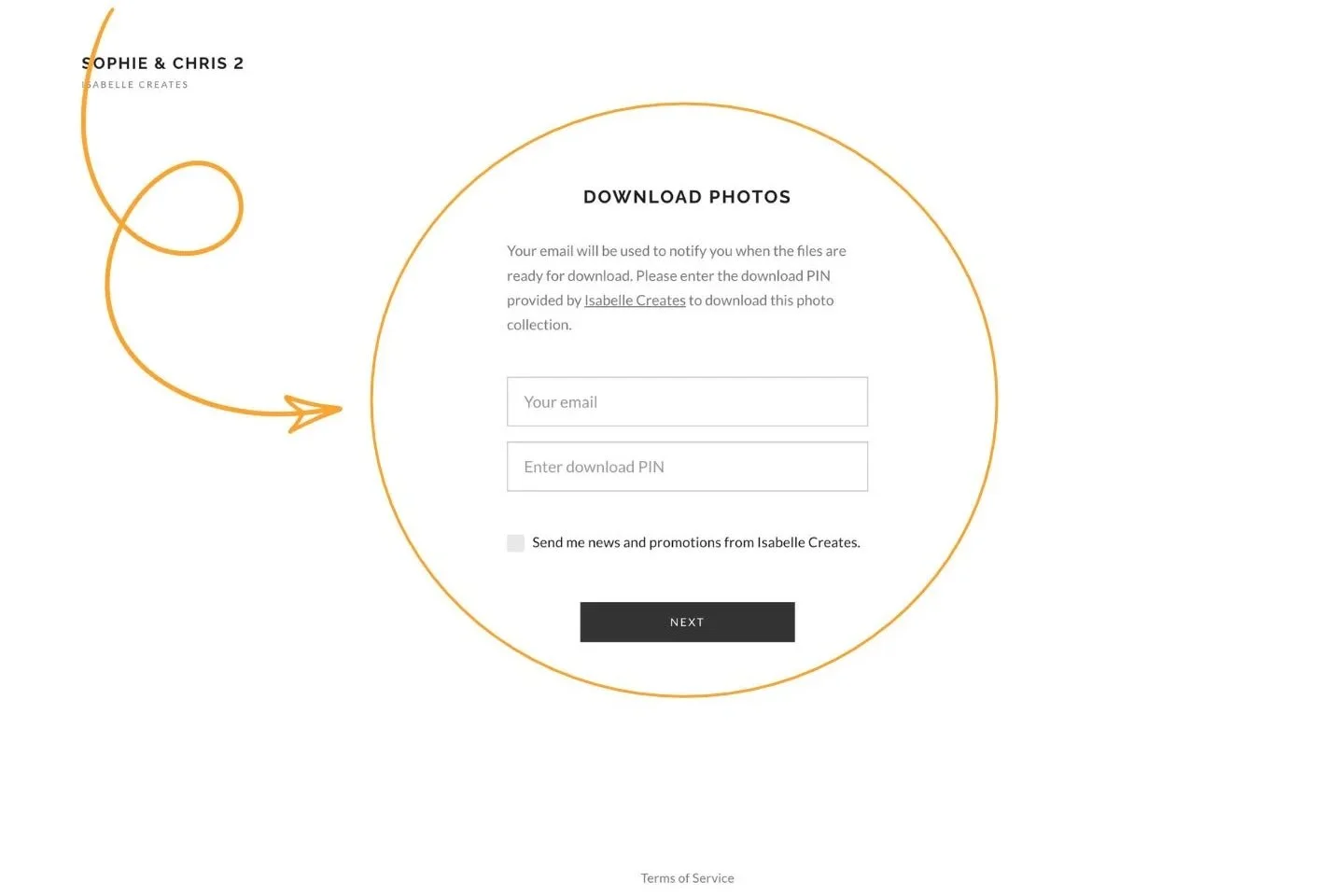
It will take you to this page, where you need to input your email and the PIN provided in your email.
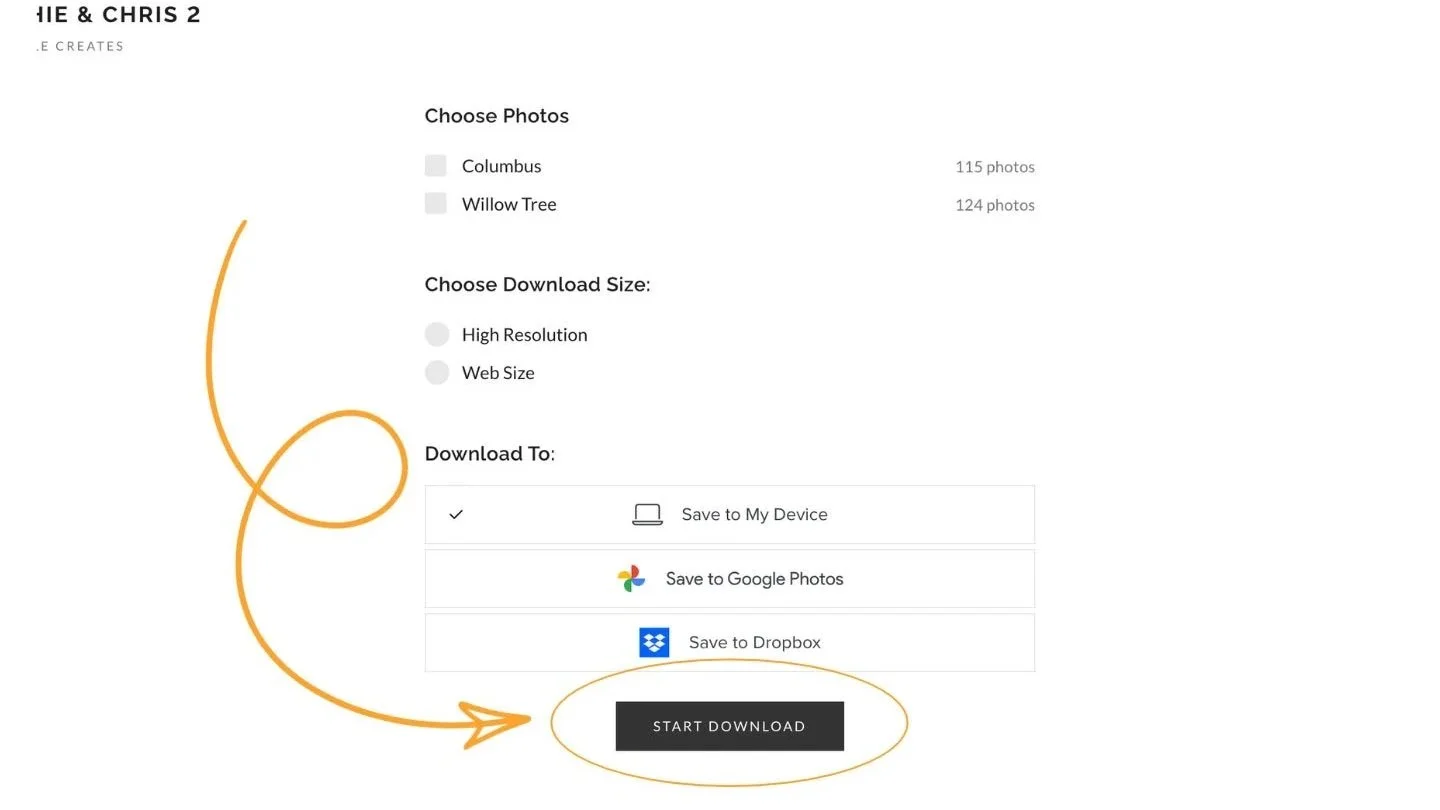
Then, if there are multiple folders, select both or a single one. Choose the size (High Resolution is recommended). Then click “Start Download”
To download individual photos: click on one image that you like.
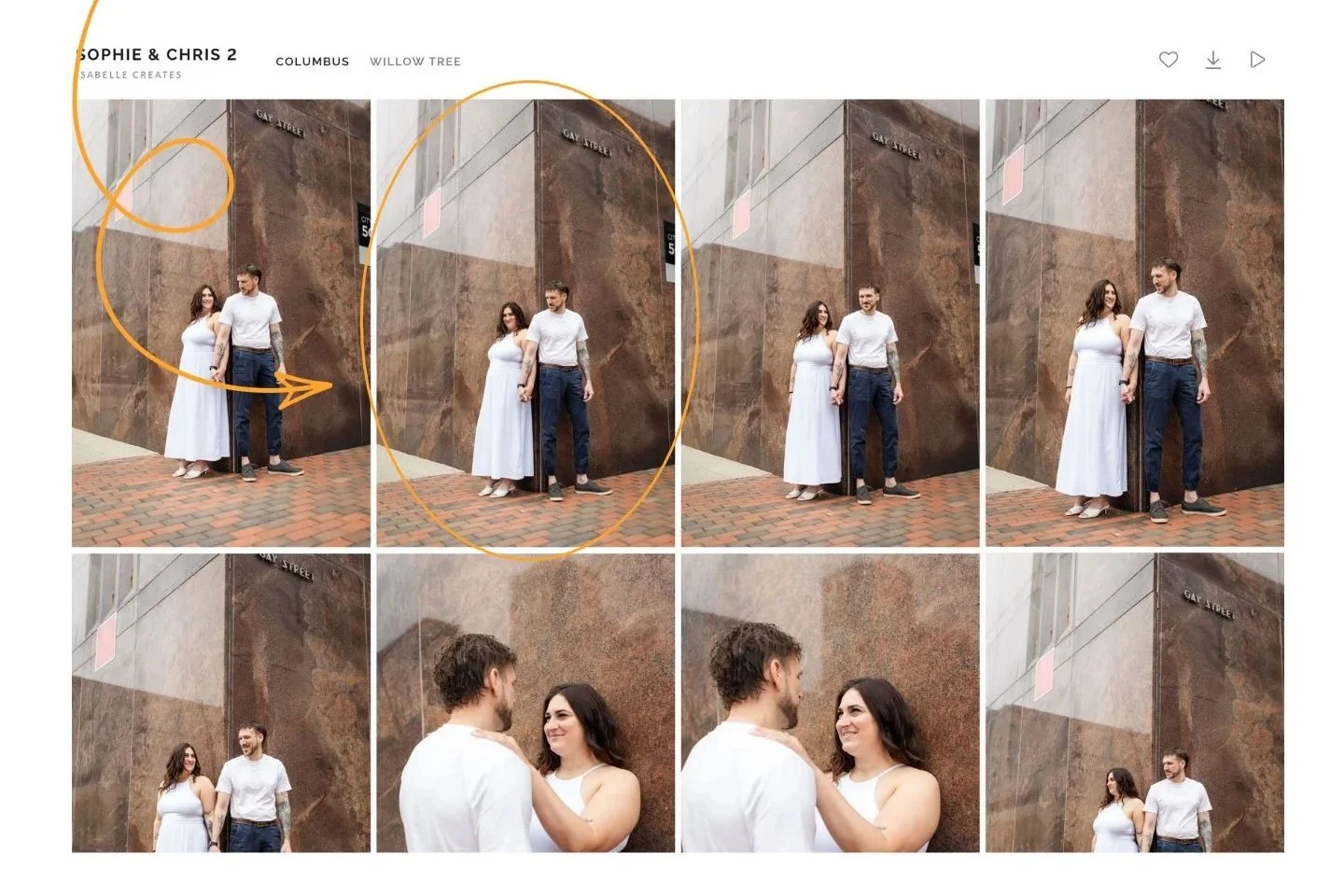
Once the image opens, click the down arrow in the top right corner.
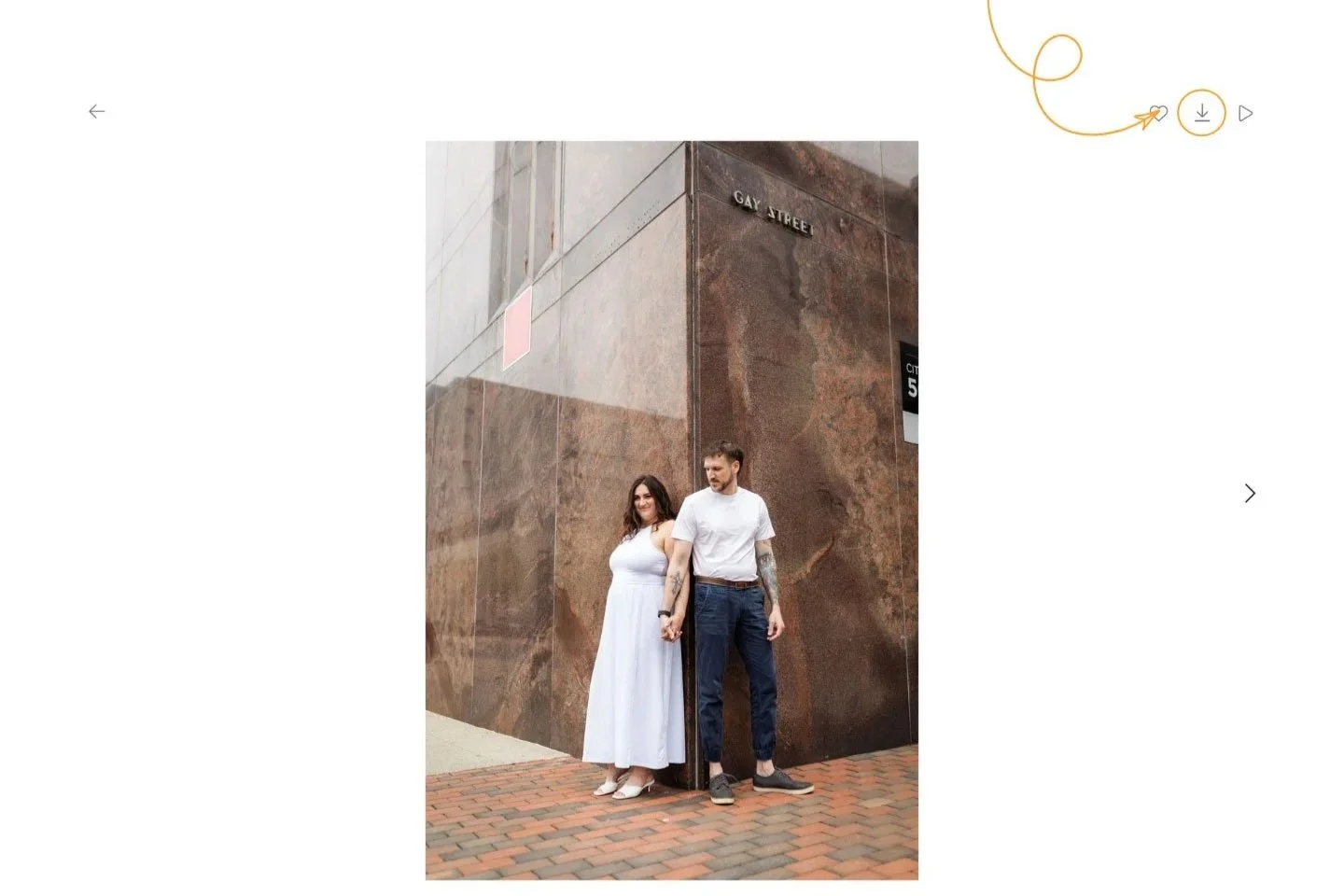
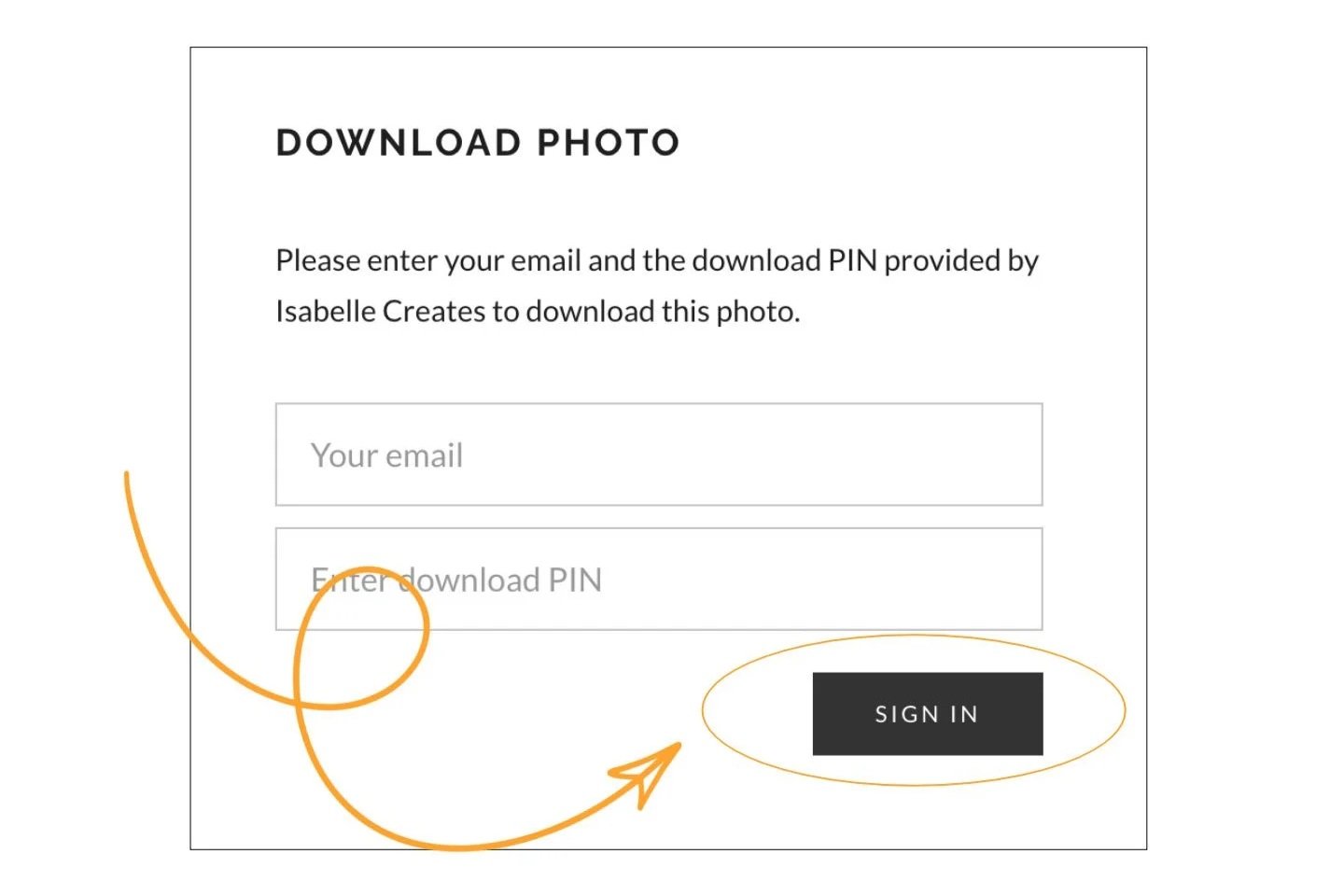
This will pop up first. Type in your email and the download PIN provided in your email.
Then click “Sign In”.
This will pop up after.
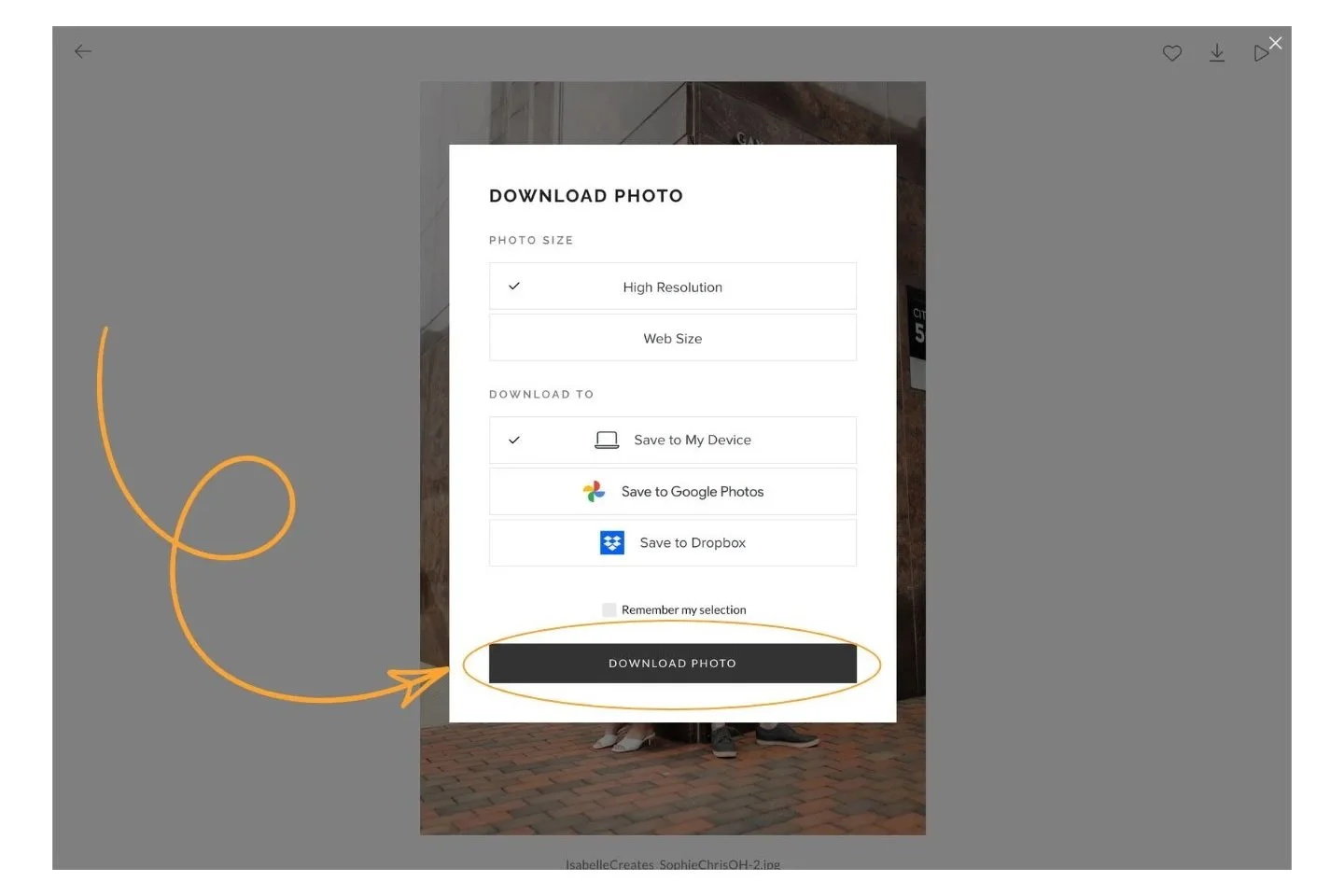
Select the size (high resolution is recommended and the best quality). Then click “Download Photo”.